Explore key tools, smart features, and expert insights...
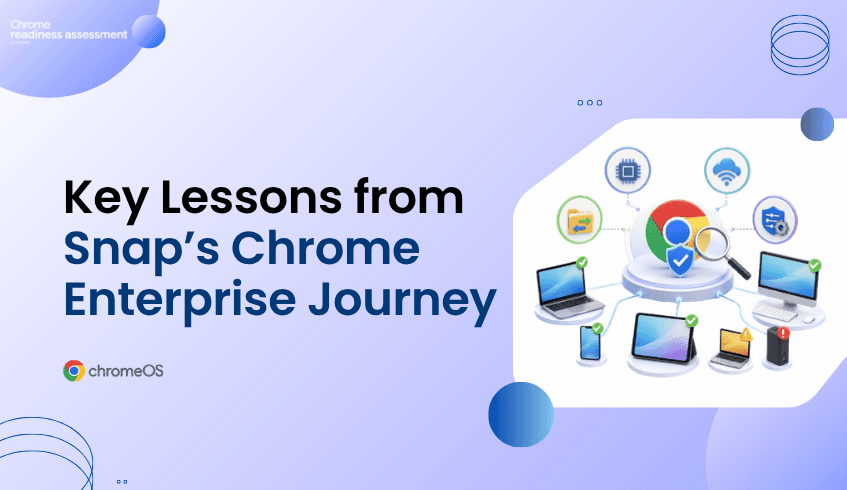
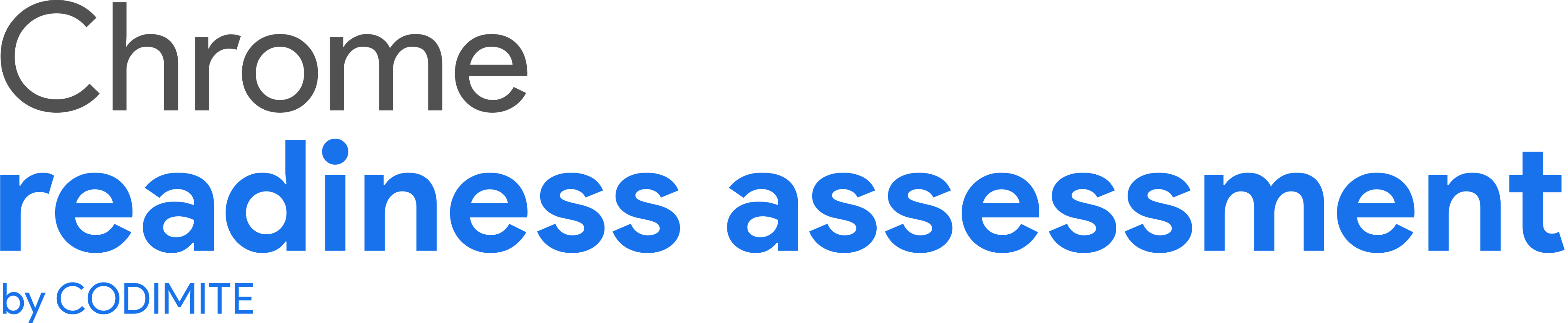
Snap uses Chrome Enterprise Premium to support secure enterprise browsing at scale, protect company data, improve visibility into Chrome deployment, and enable zero-trust access across more than 400 internally built and Google Workspace applications.
For organizations exploring Chrome Enterprise Premium, this is a strong example of how secure enterprise browsing can support modern work. Chrome has become a central place where employees access internal systems, cloud applications, business tools, and sensitive data.
But moving toward Chrome Enterprise Premium is not only a security decision. It is also a deployment readiness decision. Before CEP licenses are rolled out across a device fleet, IT teams need to understand whether the current environment is ready, where blockers may exist, and which devices may need review first.
That is where CEP Deployment Insight in Chrome Readiness Assessment helps.
Chrome Enterprise Premium gives organizations a stronger way to protect work that happens inside the browser. It brings advanced security into Chrome with threat protection, data protection, and access protection for enterprise web activity.
This matters because enterprise work now depends heavily on browser access. Employees open SaaS platforms, internal applications, dashboards, customer tools, Google Workspace apps, and private web applications through the browser. When the browser becomes the main work surface, it also becomes an important security control point.
Chrome Enterprise Premium helps organizations strengthen that control point. It supports safer access to web applications, stronger protection against web-based threats, and data protection capabilities that help reduce sensitive data exposure across browser activity.
Snap’s use of Chrome Enterprise Premium highlights how browser security can become part of a larger enterprise security strategy. The goal is not only to manage Chrome as a browser. The goal is to create a secure, controlled, and visible way for employees to access the applications and data they need.
For large organizations, this kind of browser strategy matters because users may work across many internal and cloud-based systems every day. Without strong browser visibility and access control, IT and security teams may struggle to understand how users interact with sensitive applications.
Chrome Enterprise Premium helps support that direction through secure enterprise browsing, data protection, and zero-trust access controls. For organizations that want a similar path, the next question becomes practical: is the current fleet ready for CEP deployment?
Chrome Enterprise Premium can bring strong security value, but deployment success depends on the condition of the current device environment. Not every endpoint may be ready for CEP license deployment at the same time.
Some devices may have operating system or hardware compatibility issues. Others may face network readiness problems, migration risks, legacy dependencies, policy conflicts, or operational health concerns. These issues can affect whether CEP licenses can be deployed smoothly across the organization.
This is why readiness needs to come before rollout. A company may be ready from a security strategy perspective, but parts of the fleet may still need review before deployment can expand.
A CEP rollout can become difficult when device-level issues are not visible early. IT teams may plan a broad deployment, only to discover that certain endpoints cannot move forward without remediation.
These issues can appear in different areas. OS and hardware compatibility may affect whether a device can support the deployment path. Connectivity and network readiness may affect whether services can be reached reliably. Migration risks and legacy dependencies may create user or application concerns. Policy conflicts and operational health issues may prevent a smooth rollout.
When these blockers are discovered late, IT teams may face delays, support pressure, and user disruption. When they are identified earlier, teams can plan rollout phases more confidently.
CEP Deployment Insight in Chrome Readiness Assessment helps organizations understand whether their fleet is ready before deploying Chrome Enterprise Premium licenses. It gives IT teams a clearer view of deployment readiness across endpoint devices, so rollout planning can be based on real readiness data instead of assumptions.
The feature organizes readiness across four main categories:
OS & Hardware Compatibility
Connectivity & Network Readiness
Migration Risks & Legacy Dependencies
Policy Conflicts & Operational Health
This helps teams understand where readiness gaps may exist and which areas need attention before rollout expands. Instead of treating every device the same way, IT teams can plan around the actual condition of the fleet.
Snap’s Chrome Enterprise journey gives organizations a useful view of what secure enterprise browsing can look like at scale. But every organization has its own device fleet, policies, dependencies, and operational conditions.
That is why the next step should be readiness planning. Before deploying Chrome Enterprise Premium licenses across the organization, IT teams need to understand whether their environment can support the rollout.
CEP Deployment Insight helps connect Chrome Enterprise interest with practical deployment planning. It gives teams a clearer way to understand readiness, identify blockers, and decide where rollout can begin with less risk.
Chrome Enterprise Premium can support a stronger secure browsing strategy, but deployment success depends on the readiness of the existing device fleet. Before rolling out CEP licenses across the organization, IT teams need to understand which devices are ready, which ones may face blockers, and which readiness categories need attention.
For a deeper look at how CRA helps teams identify deployment blockers before rollout, read Introducing CEP Deployment Readiness Insights.
How does Chrome Enterprise Premium support secure enterprise browsing?
Chrome Enterprise Premium helps organizations strengthen browser security with threat protection, data protection, and access protection directly in Chrome. It supports secure access to web applications and helps protect sensitive data across browser activity.
What can organizations learn from Snap’s Chrome Enterprise journey?
Snap uses Chrome Enterprise Premium to protect data, improve Chrome deployment visibility, and support zero-trust access across more than 400 internally built and Google Workspace applications. This gives other organizations a practical example of secure enterprise browsing at scale.
Why does CEP deployment readiness matter?
CEP deployment readiness matters because not every device may be ready for license deployment. Some endpoints may have compatibility issues, network gaps, migration risks, policy conflicts, or operational blockers that need review first.
What does CEP Deployment Insight help teams review?
CEP Deployment Insight helps teams review device readiness before deploying Chrome Enterprise Premium licenses. It focuses on OS and hardware compatibility, connectivity and network readiness, migration risks and legacy dependencies, and policy conflicts and operational health.
How do top deployment blockers help IT teams?
Top deployment blockers help IT teams understand which issues may affect rollout the most. This makes it easier to prioritize remediation and plan deployment phases more effectively.
Why are device-level readiness details important?
Device-level readiness details help IT teams see deployment readiness per endpoint device. This reduces rollout surprises and helps teams decide which devices can move forward and which ones need review.
Chrome Enterprise Premium gives organizations a strong path toward secure enterprise browsing. CEP Deployment Insight in CRA helps make that path more practical by showing whether the device fleet is ready, where blockers may exist, and how CEP license deployment can move forward with more confidence.
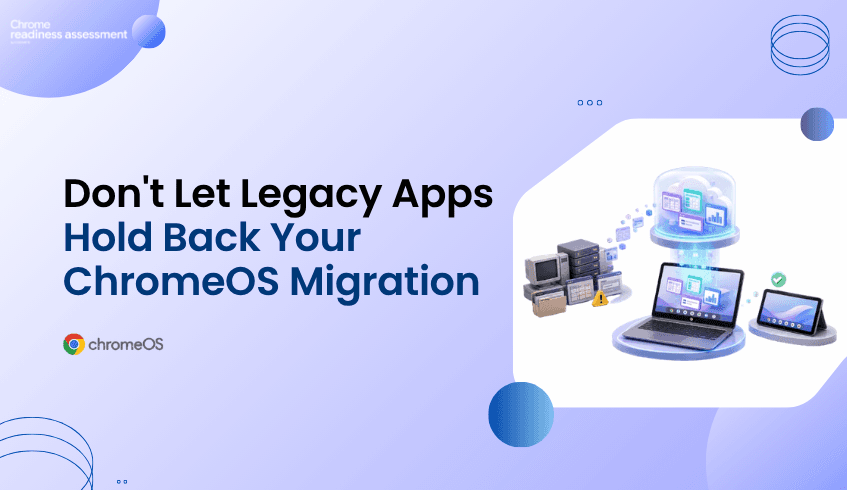
Many organizations want to move toward ChromeOS and Chromebooks because they support a secure, cloud-first, and easier-to-manage endpoint model. But migration planning can become difficult when teams still depend on legacy applications that are not fully ready for ChromeOS.
This does not mean the entire migration has to stop. Some users may be ready for ChromeOS today, while others may still need access to older business applications, internal tools, or specialized software. Application virtualization can help bridge that gap by allowing organizations to keep important app access available while still moving forward with endpoint modernization.
Chrome Readiness Assessment helps teams understand where virtualization may fit into the migration plan. Instead of guessing which applications could block ChromeOS adoption, CRA gives IT teams a clearer view of the current environment and helps identify where Cameyo compatibility may need to be reviewed.
ChromeOS migration is rarely blocked by the idea of ChromeOS itself. The bigger challenge is often the existing application environment. Many organizations have business-critical tools that were built for older operating systems, local desktop workflows, or specific device setups.
These applications may still support daily work in finance, operations, customer support, manufacturing, healthcare, logistics, or administration. Some may be used by only a small number of employees, but those users may still need the tools to complete important tasks. When these dependencies are not visible, IT teams may delay a broader ChromeOS migration because they are unsure which apps are safe to move and which ones need another path.
This is where the planning conversation needs to change. A legacy application should not automatically delay every user, every department, or the full device strategy. Teams need a way to separate users who are ready for ChromeOS from workflows that still need legacy app access.
Application virtualization gives organizations a way to keep legacy or specialized applications available without tying every user to a traditional endpoint model. Instead of keeping an entire device fleet on older systems because of a few critical applications, teams can review whether virtual app delivery can support specific workflows during migration.
This makes ChromeOS migration more flexible. Ready users can move forward with Chromebooks, while complex application needs can be reviewed separately. Virtualization becomes a bridge between the current environment and the future endpoint strategy.
This matters because modernization does not always happen all at once. Some applications may eventually be replaced by SaaS tools. Some may move to web-based alternatives. Others may remain important for a longer period. Virtualization helps organizations keep momentum while those decisions are being made.
A successful ChromeOS migration does not need to start with the most complex users. It can begin with teams whose work already happens mostly through cloud apps, browser-based systems, Google Workspace, SaaS tools, or internal web platforms.
Virtualization supports this phased approach because it gives IT teams more options. If a group is mostly ready for ChromeOS but still needs one or two legacy applications, virtualization may help reduce the need to keep those users fully tied to older devices.
This can make rollout planning more practical. IT teams can move ready users first, review app-dependent teams separately, and avoid turning one difficult application into a blocker for the entire migration. The goal is not to force every workflow into ChromeOS immediately. The goal is to keep migration moving while handling legacy dependencies with more control.
Virtualization can be useful, but it should not be treated as a universal shortcut. Some applications may work well through a virtual delivery model, while others may need replacement, redesign, web modernization, or deeper technical review.
Performance requirements, user experience, licensing, peripheral needs, offline requirements, data access, and workflow complexity can all affect whether virtualization is the right option. A simple internal tool may be a better candidate than a highly specialized application that depends on local hardware or complex integrations.
This is why visibility matters before decisions are made. IT teams need to know which applications are used, who uses them, how important they are, and whether they may be suitable for a virtualized path. Without that view, teams may either overuse virtualization or miss opportunities where it could help migration move forward.
One of the biggest advantages of virtualization is that it helps separate application dependency from device strategy. In many organizations, users remain on traditional endpoints because of a small number of applications. The device is not always the problem. The dependency is.
When application access can be handled through another delivery model, IT teams gain more freedom to rethink the endpoint environment. More users may become candidates for Chromebooks. More workflows may become easier to support through cloud-first devices. More departments may be able to move without waiting for every legacy application to be replaced.
This creates a more realistic modernization path. ChromeOS adoption can continue while legacy app decisions are handled in parallel.
Chrome Readiness Assessment helps IT teams move from broad ChromeOS interest to practical migration planning. By giving organizations a clearer view of their current environment, CRA helps teams understand where readiness gaps may exist before making fleet changes.
For virtualization planning, this visibility is especially useful. CRA helps teams review application readiness and understand where certain applications may need another path before users move to ChromeOS. If an application is not fully ready for ChromeOS, IT teams can review whether virtualization may support that workflow instead of delaying the entire migration.
This helps teams make better decisions earlier. Instead of discovering app blockers after rollout begins, organizations can identify where virtual app delivery may need to be considered during planning.
Cameyo can support virtual app delivery for organizations moving toward ChromeOS. Within CRA, Cameyo compatibility gives IT teams a practical signal when reviewing applications that may not move directly to ChromeOS.
This does not mean every application should automatically be virtualized. It means teams can use compatibility insight as part of a broader review. Some applications may be good candidates for Cameyo. Others may need replacement, further testing, or another migration path.
For a deeper look at the CRA feature side of this topic, read How CRA Helps Identify Applications for Cameyo Virtualization. That article focuses more directly on Cameyo compatibility inside CRA, while this blog focuses on virtualization as a broader ChromeOS migration strategy.
Legacy applications should not automatically stop endpoint modernization. They should be reviewed, understood, and planned around. Virtualization gives organizations a way to keep important application access available while still moving toward ChromeOS and Chromebooks.
CRA helps make that planning more practical. By giving IT teams readiness visibility before migration begins, Chrome Readiness Assessment helps organizations understand where ChromeOS adoption can move forward, where app dependencies need review, and where Cameyo compatibility may support a smoother transition.
How can virtualization support ChromeOS migration?
Virtualization can help users access legacy or specialized applications while the organization moves toward ChromeOS. This allows teams to continue migration planning without waiting for every application to be replaced first.
Does virtualization replace application modernization?
No. Virtualization is not always a permanent replacement for modernization. It can act as a bridge while teams decide whether an application should be replaced, moved to a SaaS alternative, redesigned, or kept available through virtual delivery.
Why do legacy applications slow ChromeOS migration?
Legacy applications can slow migration when users still depend on tools that are not fully ready for ChromeOS. Without visibility, IT teams may delay broader rollout because they do not know which applications create blockers.
How does CRA help with virtualization planning?
Chrome Readiness Assessment helps teams understand where readiness gaps may exist before ChromeOS migration. It supports application review and helps identify where virtualization may need to be considered.
What is Cameyo compatibility in CRA?
Cameyo compatibility helps IT teams review whether certain applications may be suitable for virtual app delivery. This can support ChromeOS migration planning when an application is not fully ready for direct ChromeOS use.
Should every legacy app be virtualized?
No. Some applications may be better suited for replacement, SaaS alternatives, or further technical review. Virtualization should be considered where it supports user needs, migration goals, and long-term application strategy.
Virtualization helps organizations keep ChromeOS migration moving without ignoring legacy application needs. CRA gives IT teams a clearer way to understand where virtualization may fit, where Cameyo compatibility should be reviewed, and how to move toward ChromeOS with less uncertainty.
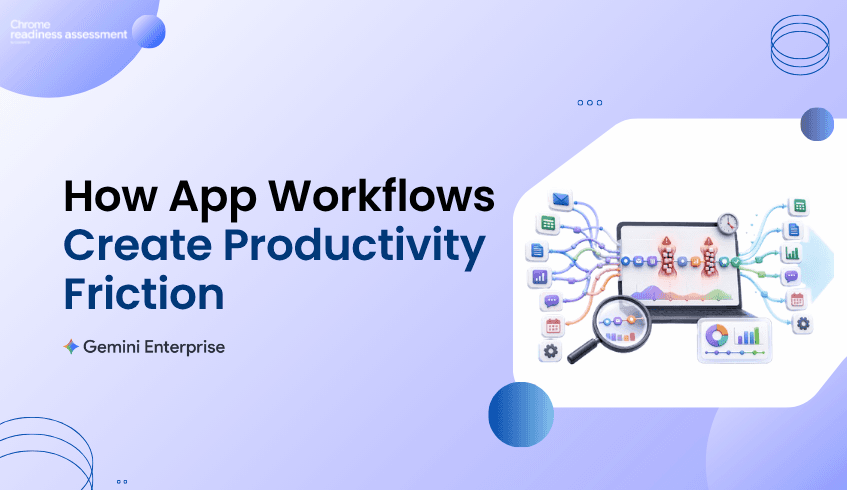
Productivity does not always slow down because teams lack tools. It often slows down because work is spread across too many applications, repeated steps, manual handoffs, and small actions that happen again and again throughout the day.
A team may move from email to a spreadsheet, then into a business application, then back into a document or reporting tool. Each step may look simple on its own, but across many users and repeated workflows, those small movements can create real productivity friction.
Chrome Readiness Assessment helps organizations understand these workflow patterns through Agentic Workflows. Instead of only looking at which apps are installed or used, CRA helps teams see how work moves across applications and where repeated patterns may be slowing teams down.
Many productivity problems are not obvious at first. A workflow may feel normal because employees have repeated it for months or years. Teams may be used to switching between apps, copying information, checking the same systems, updating records, or recreating reports manually.
The problem is that these repeated actions can quietly consume time. A few minutes lost in one workflow may not look serious, but when the same pattern happens across many users or devices, the impact becomes larger. Productivity slowdown often comes from the combined effect of small, repeated steps.
This is why workflow visibility matters. Organizations need to understand how work actually moves across apps before they can improve the way teams operate.
Modern teams use multiple applications to complete a single task. That is normal, but frequent app switching can create friction when users need to move between tools just to finish one workflow.
For example, a user may check a request in one application, verify details in another, update a spreadsheet, send a message, and then record the outcome somewhere else. This kind of workflow may not feel like a major issue when viewed once, but repeated app switching can slow down focus and create unnecessary manual effort.
Agentic Workflows help make those patterns easier to review. By showing repeated application sequences, CRA helps teams understand where workflows may be fragmented and where users may be spending time moving between tools instead of completing the work itself.
A workflow bottleneck is not always a broken process. Sometimes it is a process that technically works but takes too many steps. These workflows can become part of everyday routine, which makes them harder to notice.
Repeated workflows can appear in reporting, approvals, customer updates, internal tracking, ticket review, operations, finance tasks, HR requests, and project coordination. Each workflow may involve multiple tools, repeated checks, and manual updates that slow the user down.
CRA helps organizations look at these patterns from a workflow perspective. Instead of only asking which applications are used, teams can begin asking how those applications are connected through daily work and where productivity may be getting delayed.
Productivity improvement should be based on more than opinions. A workflow may feel frustrating, but teams still need a way to understand whether it takes meaningful time across the organization.
Agentic Workflows help connect repeated workflow patterns with time spent. This gives IT, operations, and business teams a clearer view of where attention may be needed. If a repeated workflow consumes noticeable time across users, it may deserve deeper review.
This does not mean every repeated workflow should be changed immediately. Some workflows may be necessary, sensitive, or dependent on business judgment. But time visibility helps teams decide where to investigate productivity friction first.
Productivity problems often sit between business teams and IT teams. Business teams understand where daily work feels slow, while IT teams understand the applications, systems, access paths, and device environments that support that work.
Without shared visibility, the conversation can become too general. A business team may say a workflow is slow, while IT may not have enough context to see where the slowdown is happening. Agentic Workflows help bring both sides closer to the same view.
With clearer workflow visibility, teams can discuss repeated app sequences, time spent, and workflow friction in a more practical way. This makes it easier to decide whether a process needs simplification, better tooling, stronger guidance, or future automation review.
Gemini Enterprise adoption becomes more useful when organizations understand where productivity is being slowed down. AI agents can support many types of work, but the best starting point is often a clear understanding of where repeated effort already exists.
Agentic Workflows helps teams identify workflow friction before moving into deeper AI planning. This keeps the conversation practical. Instead of starting with broad automation ideas, teams can first review where daily app workflows create repeated effort, time loss, or operational friction.
For organizations exploring Gemini Enterprise, this kind of visibility can help connect productivity goals with real workflow behavior. The focus is not only on automation. It is about understanding where teams may need better support across the way they already work.
Chrome Readiness Assessment helps organizations review workflow friction from a practical environment view. Agentic Workflows gives teams a way to understand repeated app journeys, where work may be slowing down, and which patterns may deserve closer review.
This helps organizations avoid guessing. Instead of relying only on employee feedback or isolated productivity complaints, teams can use workflow visibility to understand where repeated app usage may be creating friction across daily work.
That insight can support better decisions across IT planning, operations improvement, Gemini Enterprise adoption, and future workflow modernization. It gives teams a clearer way to move from “work feels slow” to “these workflow patterns need attention.”
This blog focuses on productivity slowdown and workflow friction. For a broader look at how organizations can turn automation ideas into a readiness plan, read Turning Enterprise Workflow Automation Ideas Into a Readiness Plan.
That article focuses more on automation planning. This post focuses on the earlier productivity question: where daily app workflows may be creating friction before teams decide what needs to change.
Enterprise productivity is not only about adding more tools. It is about understanding how work moves across the tools teams already use.
Agentic Workflows helps CRA give organizations a clearer view of repeated app workflows, time spent, and productivity friction. With that visibility, teams can better understand where work slows down, where processes may need review, and where Gemini Enterprise adoption may support a more efficient way of working.
What are Agentic Workflows in CRA?
Agentic Workflows helps organizations review repeated app workflows and understand how users move across applications during daily work. This gives teams better visibility into workflow patterns and productivity friction.
How can app switching slow productivity?
App switching can slow productivity when users need to move between multiple tools to complete one task. Repeated switching can create time loss, manual effort, and workflow friction across teams.
Why does workflow visibility matter for enterprise productivity?
Workflow visibility helps teams understand where repeated work happens, how much time workflows may consume, and where daily processes may need review.
Does Agentic Workflows automate tasks directly?
No. Agentic Workflows helps teams understand workflow patterns. It supports planning by giving visibility into repeated app usage and productivity slowdown before teams decide what should change.
How does this support Gemini Enterprise adoption?
Agentic Workflows can help teams understand where repeated effort and workflow friction exist before exploring Gemini Enterprise adoption. This makes AI planning more practical and grounded in real workflow behavior.
How is this different from the previous Agentic Workflows blog?
The previous blog focused on turning automation ideas into a readiness plan. This blog focuses on productivity slowdown, app switching, and workflow friction across daily enterprise work.
Agentic Workflows helps organizations move from vague productivity concerns to clearer workflow insight. By showing where repeated app journeys may be slowing teams down, CRA gives IT and business teams a stronger starting point for improving how work gets done.
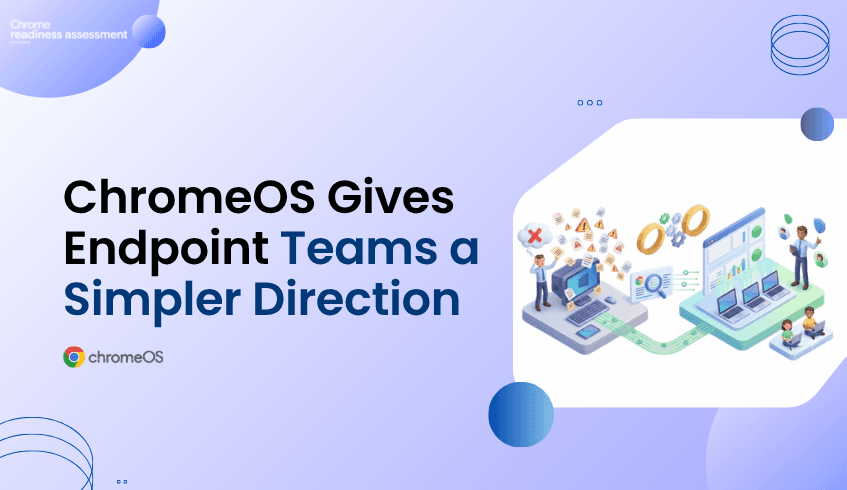
The July 2026 Windows patch cycle addressed at least 570 security flaws across Microsoft’s Windows operating systems and related enterprise software. For IT and security teams, this kind of patch pressure is more than a monthly maintenance task. It is a reminder to review how much operational effort traditional endpoint fleets can create.
Windows environments remain important for many organizations, but large endpoint fleets often come with ongoing patching, legacy application dependencies, local software management, device variation, and support complexity. When those issues grow, teams may start asking whether every user, workflow, and device still needs the same traditional endpoint model.
ChromeOS and Chromebooks give organizations a secure, cloud-first endpoint direction with built-in protections, automatic updates, sandboxing, and Verified Boot. But moving from a Windows-heavy fleet to ChromeOS should not begin with assumptions. Chrome Readiness Assessment helps IT teams see whether their current fleet, applications, peripherals, browser usage, and workflows are ready before migration begins.
Security patching is a normal part of enterprise IT, but patch volume can reveal a deeper challenge. When teams need to manage hundreds of vulnerabilities across operating systems, applications, and related software, the workload becomes more than installing updates. It becomes a question of operational sustainability.
Traditional endpoint fleets can carry many layers of responsibility. IT teams need to manage OS updates, device compatibility, application dependencies, browser versions, local configurations, security tools, user impact, and support requests. A patch may be necessary, but rollout planning still needs testing, timing, communication, and follow-up.
This is where endpoint modernization becomes important. Organizations do not need to move every user away from Windows overnight, and not every workflow is ready for ChromeOS. But patch pressure can help teams identify where a simpler, cloud-first endpoint model may reduce long-term complexity.
ChromeOS is designed around a security-first approach that helps reduce common endpoint risks. ChromeOS security uses Verified Boot to check the system at startup, sandboxing to help isolate threats, and automatic updates to keep devices current with less manual effort.
This matters for organizations that want a more manageable endpoint environment. Instead of relying heavily on manual patch deployment and local software maintenance, ChromeOS helps keep devices updated in the background. ChromeOS releases a full OS update about every four weeks, while minor security fixes and software updates happen every two to three weeks.
No operating system removes every security risk. But ChromeOS gives IT teams a different endpoint model: one that reduces dependency on complex local environments and supports a more consistent, cloud-first device experience.
Chromebooks can be a strong fit for teams that work mainly through cloud applications, browser-based systems, Google Workspace, virtualized apps, SaaS platforms, and secure web access. For these users, the device does not need to carry the same level of local software complexity as a traditional endpoint.
This can reduce the burden of managing local applications, user-installed tools, outdated software, and device-specific issues. When more work happens through managed browser and cloud experiences, IT teams can simplify how users access business systems while maintaining stronger control over the endpoint environment.
That simplicity becomes valuable at scale. A large fleet with many device types, app versions, and local configurations can be difficult to manage consistently. Chromebooks help organizations move toward a cleaner endpoint model where updates, policies, and security controls are easier to standardize.
A ChromeOS direction can be attractive, but migration needs careful planning. Many organizations still depend on Windows-based applications, Office workflows, local tools, peripherals, internal systems, and browser-specific behaviors. Some workflows may move easily to ChromeOS, while others may need alternatives, virtualization, or phased planning.
This is why a migration should not begin only with the idea that Chromebooks are secure or easier to manage. IT teams need to understand which users are ready, which devices can move, which applications may create blockers, and which business processes need more review.
Without readiness visibility, a migration can create user disruption. A team may discover too late that a critical application does not work properly, a peripheral is unsupported, or a workflow depends on a local Windows tool. These issues can slow rollout and reduce user confidence.
Chrome Readiness Assessment helps IT teams understand whether their current environment is ready for ChromeOS migration. It gives organizations a clearer view of where readiness gaps may exist, so migration planning can be based on real environment data instead of assumptions.
This helps teams move beyond broad assumptions. Instead of asking, “Can we move to Chromebooks?” IT teams can ask more practical questions: Which devices are ready? Which users depend on Windows applications? Which workflows need review? Which parts of the fleet can move first?
That visibility makes ChromeOS migration more structured. Teams can identify low-risk groups for early rollout, separate users who need more review, and plan remediation before disruption reaches end users.
CRA helps reduce ChromeOS migration risk by showing where the current fleet may be ready and where blockers may exist. This is important because endpoint modernization affects more than the device itself. It touches applications, browser behavior, user workflows, peripherals, and support expectations.
For example, some users may already work mostly through cloud applications and browser-based systems. These users may be strong candidates for Chromebooks. Other users may depend on local Windows applications, specialized peripherals, or workflows that need alternatives before migration. CRA helps IT teams see those differences before rollout begins.
This gives organizations a better way to phase the move. Instead of replacing devices broadly, teams can start with the users and device groups that show stronger readiness, then review more complex areas separately.
Large Windows patch cycles can push organizations to rethink endpoint strategy, but the goal should not be reactionary migration. The stronger approach is to use that pressure as a reason to review the current environment and plan a safer, more manageable device direction.
ChromeOS and Chromebooks give organizations a strong path toward secure, cloud-first endpoint modernization. CRA helps make that path practical by showing whether the existing fleet is ready, where blockers may exist, and which users or devices can move first.
For a broader look at ChromeOS as a modern work platform, read ChromeOS Is Built for Modern Work. Is Your Environment Ready?.
Why do Windows vulnerabilities matter for endpoint planning?
Windows vulnerabilities remind IT teams to review the complexity of traditional endpoint fleets. Large patch cycles can create operational pressure around testing, deployment, compatibility, and support.
How does ChromeOS help reduce endpoint security complexity?
ChromeOS helps reduce endpoint complexity with security features such as Verified Boot, sandboxing, automatic updates, and a cloud-first operating model that reduces reliance on local software management.
Are Chromebooks a replacement for every Windows device?
Not always. Some users may depend on Windows applications, specialized peripherals, or local workflows. That is why organizations should assess readiness before moving users to Chromebooks.
How does CRA help with ChromeOS migration planning?
Chrome Readiness Assessment helps IT teams review device readiness, application dependencies, browser usage, peripheral compatibility, and migration blockers before moving users or device groups to ChromeOS.
Can CRA help identify which users should move first?
Yes. CRA helps teams understand which parts of the environment are more ready for ChromeOS and which areas need additional review before migration.
Why should readiness come before Chromebook migration?
Readiness helps reduce rollout surprises. IT teams can understand what users rely on today, where blockers may exist, and how to phase ChromeOS migration with less disruption.
Patch pressure should not only create another update task. It should encourage organizations to review whether their endpoint strategy is still the right fit. ChromeOS and Chromebooks offer a secure, cloud-first direction, while CRA helps IT teams understand whether their current fleet is ready for the move.
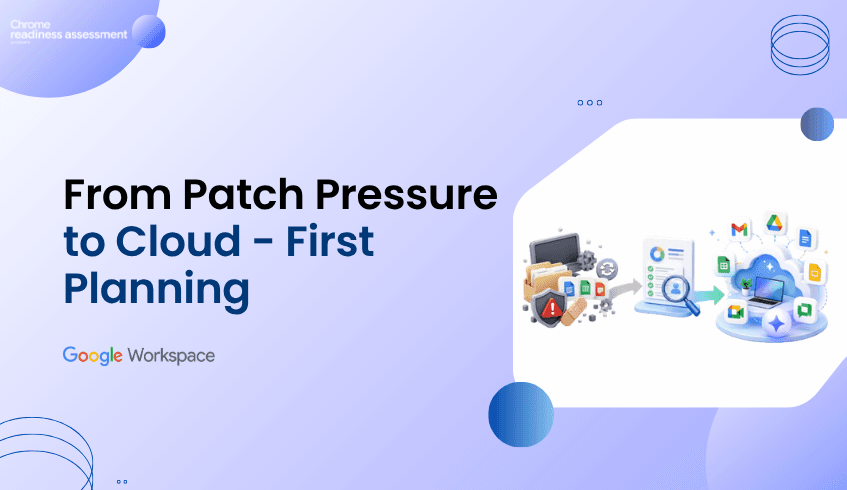
Security patch cycles are a constant reminder that productivity environments need regular review. The July 2026 Monthly Patch addresses multiple Microsoft security vulnerabilities across Windows, SharePoint, Exchange, Microsoft Office, Word, and PowerPoint.
For organizations that still depend heavily on legacy productivity tools, this creates a bigger planning question. Teams may be patching, supporting, and maintaining applications that are not equally important across the business anymore. Some tools may still support critical workflows, while others may be used rarely or replaced by more modern cloud-first alternatives.
Google Workspace gives organizations a more connected and cloud-first way to work across Gmail, Drive, Docs, Sheets, Slides, Meet, Chat, and Gemini. But before moving, IT teams need to understand what users actually rely on today. That is where Workspace Readiness in Chrome Readiness Assessment helps.
Security planning often focuses on endpoints, networks, identity, and access control. But productivity tools also need attention because they sit at the center of daily business activity. Employees use documents, spreadsheets, presentations, shared files, and email to handle sensitive information, collaborate with teams, and support customer-facing work.
When older productivity tools remain active across the environment, they can create hidden complexity. IT teams may need to manage local installations, patch cycles, compatibility issues, file dependencies, add-ins, macros, and user workflows that are difficult to review at scale. The challenge is not only whether these tools are installed. The real question is whether they are still actively needed and how much business work depends on them.
A stronger productivity security plan starts with visibility. Before teams decide what to keep, replace, or migrate, they need a clear view of current application usage and workflow dependency.
Patch management will always matter. Every organization needs a responsible way to respond to vulnerabilities and keep systems updated. But patching alone does not answer whether the current productivity environment is still the right long-term fit.
Some legacy tools may be deeply embedded in business workflows. Others may remain installed because they were part of older licensing decisions, previous deployments, or user habits that no longer reflect how teams work today. Without usage visibility, organizations may continue supporting tools that add cost and complexity without delivering enough value.
This is where cloud-first productivity planning becomes important. Instead of only reacting to each security alert, organizations can also review whether Google Workspace can support a simpler, more collaborative, and more manageable way of working.
Google Workspace brings communication, collaboration, storage, meetings, documents, spreadsheets, and AI-powered productivity into one connected cloud environment. This helps teams reduce the friction that often comes from local files, disconnected applications, and repeated file sharing.
Google Workspace threat prevention helps protect users with built-in threat defenses, secure-by-design architecture, and controls that reduce exposure to phishing and malware. Gmail automatically blocks more than 99.9% of spam, phishing attempts, and malware before they reach users.
For teams that handle business-critical documents, files, and communication every day, this matters. A cloud-first workspace gives users a smoother way to collaborate while helping IT teams apply stronger controls across the environment.
Modern work needs both security and speed. Users need quick access to files, smooth collaboration, shared documents, and reliable communication. IT teams need control over data, identity, devices, and access.
Google Workspace security helps protect company data across all the devices. It also supports contextual access, data loss prevention controls, and zero-trust controls that verify users and devices before granting access.
This makes Workspace useful for organizations that want to reduce reliance on fragmented productivity workflows. When work happens in a connected cloud platform, collaboration becomes easier to manage and security controls become easier to apply consistently.
A move to Google Workspace should not begin with assumptions. Even when the benefits are clear, organizations still need to understand which productivity tools are actively used across the business.
Some users may only open legacy applications occasionally. Others may depend on them for daily work. Some workflows may already have Google Workspace alternatives, while others may need review before migration. Without visibility, IT teams may overestimate the importance of rarely used tools or underestimate workflows that still depend on older applications.
This is why migration planning needs real usage data. Before starting a Google Workspace migration, teams should understand current productivity tool usage and overall readiness.
Workspace Readiness Connects Security Review to Migration Planning
Workspace Readiness in Chrome Readiness Assessment helps organizations understand what their teams really use before they migrate. It helps teams identify office productivity tools used, review usage time for each application, detect macro usage, spot Google Workspace alternatives, reduce conflicts, eliminate unused licenses, and uncover hidden blockers before migration.
This gives IT teams a practical way to move from security concern to migration planning. Instead of only saying that legacy productivity tools should be reviewed, teams can see which tools are still important, which ones are rarely used, and where Google Workspace alternatives may fit.
Workspace Readiness also helps reduce migration surprises. If a tool is rarely used, the organization may have an opportunity to simplify support or reduce unnecessary licensing. For teams reviewing whether older Office applications are still worth maintaining, this guide on how unused Office applications can increase productivity software costs gives a deeper look at that cost and complexity angle. If a tool is heavily used, it may need a more careful transition plan. If a Google Workspace alternative exists, teams can plan the move with more confidence.
Macro usage can be an important part of productivity migration, especially for teams that rely on advanced spreadsheet or Office-based workflows. But it should be reviewed as one part of the broader readiness picture, not as the only reason to assess the environment.
Workspace Readiness helps surface macro usage where it may affect migration planning. For teams that need a deeper review of this area, read our guide on macro usage before moving Office workflows to Google Workspace.
For this broader planning conversation, the bigger goal is to understand the full productivity environment. That means knowing which tools are used, how often they are used, where alternatives exist, and which workflows need review before users move.
Cloud-first productivity planning helps organizations move beyond constant reaction. Patch cycles and vulnerability alerts may create urgency, but readiness visibility creates direction.
Workspace Readiness helps teams understand whether their current productivity environment is ready for Google Workspace. It gives IT teams a clearer view of tool usage, hidden blockers, and possible Workspace alternatives before migration begins.
This makes the move more practical. Instead of switching platforms based only on urgency, teams can plan around real usage and decide where Google Workspace can support a safer, simpler, and more connected way to work.
Google Workspace supports a stronger direction for modern work because it brings collaboration, communication, AI-powered productivity, and security capabilities into one cloud platform. It helps teams reduce scattered local files, disconnected workflows, and difficult-to-manage productivity environments.
But a stronger direction still needs a practical first step. Workspace Readiness helps organizations understand what users rely on today, where blockers may exist, and how Google Workspace migration can begin with more confidence.
Why do Microsoft security vulnerabilities matter for productivity planning?
Microsoft security vulnerabilities remind organizations to review the productivity tools still active in their environment. If legacy tools are widely used, IT teams should understand usage, risk, and migration readiness before deciding the next step.
How does Google Workspace support safer collaboration?
Google Workspace helps teams collaborate more safely with threat defenses, phishing and malware protection, login protections, contextual access, data loss prevention controls, and zero-trust security capabilities.
Does Google Workspace remove every security risk?
No. No platform removes every security risk. Google Workspace gives organizations a more cloud-first and security-focused productivity environment, but teams still need strong policies, user education, access controls, and readiness planning.
What does Workspace Readiness help identify?
Workspace Readiness helps teams identify office productivity tools used, usage time for each application, macro usage, Google Workspace alternatives, unused license opportunities, and hidden migration blockers.
Why should readiness come before Google Workspace migration?
Readiness helps teams understand what users rely on today before migration begins. This reduces surprises and helps IT teams decide which tools, workflows, and users are ready for Google Workspace.
How does CRA support Workspace migration planning?
Chrome Readiness Assessment supports migration planning by giving IT teams visibility into current productivity tool usage and readiness signals. This helps teams move from assumptions to a clearer Google Workspace migration plan.
Patch pressure should not only trigger short-term fixes. It should also encourage organizations to review whether their productivity environment is still the right fit. Google Workspace gives teams a safer cloud-first direction, while Workspace Readiness in CRA helps organizations understand what they use today and how to plan the move with more confidence.
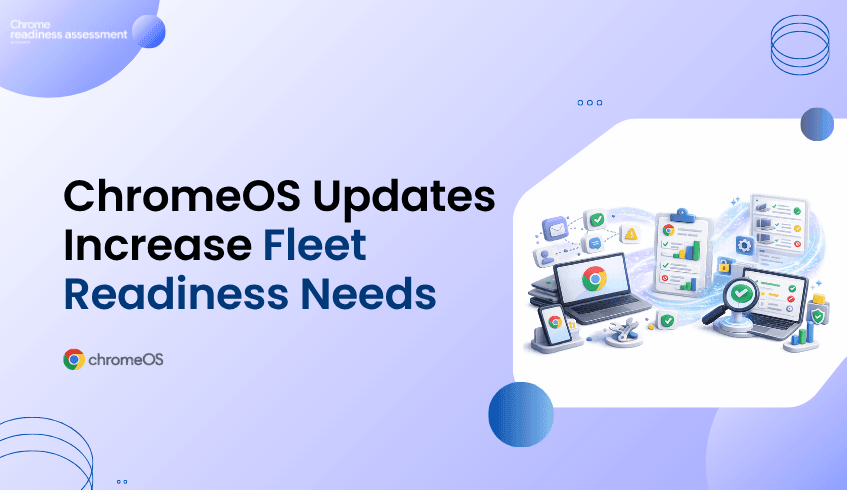
ChromeOS continues to become more useful for organizations that want a secure, cloud-first, and easier-to-manage endpoint environment. The ChromeOS 150 release notes include updates across managed Chromebook authentication, app support, reauthentication reliability, long-term release planning, and managed device experiences.
For IT teams, these updates make ChromeOS and Chromebooks a stronger option for modern device fleets. ChromeOS supports cloud-based work, centralized management, automatic updates, and a simpler endpoint experience compared with traditional device environments. But moving to ChromeOS still needs careful planning.
A migration is not only about choosing Chromebooks. IT teams need to understand whether their current fleet are ready for ChromeOS. That is where Chrome Readiness Assessment helps. CRA gives teams a clearer view of their environment before they move, so ChromeOS adoption can be planned with less risk and more confidence.
ChromeOS is built around a cloud-first way of working, and that direction continues to support organizations that want easier device management and stronger endpoint control. For business environments, ChromeOS can help reduce the complexity that often comes with heavy desktop operating systems, local application dependencies, and scattered device management processes.
Recent ChromeOS updates continue to strengthen this direction. Managed Chromebook authentication, enterprise policies, long-term release planning, and browser-based app support all matter for organizations that want a more predictable device experience. These updates are not only feature improvements. They also give IT teams more control over how ChromeOS devices are used, secured, and managed across the organization.
For teams considering ChromeOS migration, this is important. The operating system is moving in a direction that supports modern work, but the current environment still needs to be assessed before devices are moved.
Managed Chromebooks need to fit into enterprise identity and access requirements. ChromeOS 150 adds enterprise policies that allow users to enable local PINs and passwords on managed Chromebooks, while admins can configure minimum complexity requirements for those local authentication methods.
This matters because authentication is one of the first areas IT teams review before adopting or expanding a managed device strategy. Users need a smooth sign-in experience, but organizations also need policy control, identity alignment, and predictable access behavior.
ChromeOS also improves reauthentication reliability, helping reduce unexpected reauthentication requests on the login screen. For users, this can make the device experience smoother. For admins, it supports a more reliable managed Chromebook environment.
ChromeOS can support a simpler, more secure, and more manageable endpoint strategy. ChromeOS device management also gives businesses a way to remotely manage devices that power employees and customer experiences.
But migration is still a risk if it begins without visibility. A device fleet may include older hardware, unsupported peripherals, legacy applications, browser dependencies, local workflows, or users who rely on tools that are not ready for ChromeOS and etc. These issues can slow adoption and create user disruption.
That is why the migration question should not only be, “Is ChromeOS good for our organization?” A better question is, “Is our current environment ready for ChromeOS?”
CRA helps answer that question before rollout begins.
Chrome Readiness Assessment helps IT teams understand whether their current fleet is ready for ChromeOS. It gives teams visibility so migration planning can be based on real environment data.
This is especially useful when organizations are reviewing Chromebooks for a migration rollout. Instead of guessing which users or devices can move first, IT teams can identify where the environment is ready, where more review is needed, and where blockers may affect adoption.
CRA helps teams move from general interest in ChromeOS to a practical migration plan. It supports better decisions around which devices should move first, which workflows need review, which applications may require alternatives, and which parts of the fleet may not be ready yet.
ChromeOS updates make the platform stronger for managed enterprise environments. Authentication improvements, policy controls, app changes, long-term release options.
But the strongest rollout plans begin with readiness. Before moving a fleet to ChromeOS, organizations need to understand current device health, application usage, peripheral compatibility, browser dependencies, and migration blockers.
CRA helps IT teams build that view. It gives organizations a clearer way to prepare for ChromeOS migration, reduce migration related rollout surprises.
For a broader look at the value of ChromeOS for modern work, read ChromeOS Is Built for Modern Work. Is Your Environment Ready?
What are the ChromeOS updates focused on?
ChromeOS updates include improvements across managed Chromebook authentication, enterprise policies, app support, reauthentication reliability, long-term release planning, accessibility, and ChromeOS Flex update requirements.
Why do ChromeOS updates matter for IT teams?
They matter because IT teams need predictable device management, stronger policy control, smoother user experiences, and clearer support planning before expanding ChromeOS across the organization.
Why is ChromeOS migration risky without readiness visibility?
Migration can create issues if teams do not understand application dependencies, peripheral compatibility, older hardware, browser usage, local workflows, or device-level blockers before rollout.
How does CRA help with ChromeOS migration planning?
Chrome Readiness Assessment helps IT teams assess applications, devices, browsers, peripherals, and readiness blockers before moving users or device groups to ChromeOS.
Can CRA help teams decide which devices should move first?
Yes. CRA helps teams understand which parts of the environment are more ready for ChromeOS and which areas need further review before migration.
Why does ChromeOS Flex readiness matter?
ChromeOS Flex can help modernize existing devices, but older hardware may not always meet future update or support requirements. Readiness assessment helps teams understand which devices may be suitable for ChromeOS Flex and which may need review.
ChromeOS and Chromebooks give organizations a strong path toward secure, cloud-first, and easier-to-manage endpoints. CRA helps make that path more practical by showing whether the current fleet is ready, where blockers may exist, and how ChromeOS migration can begin with more confidence.
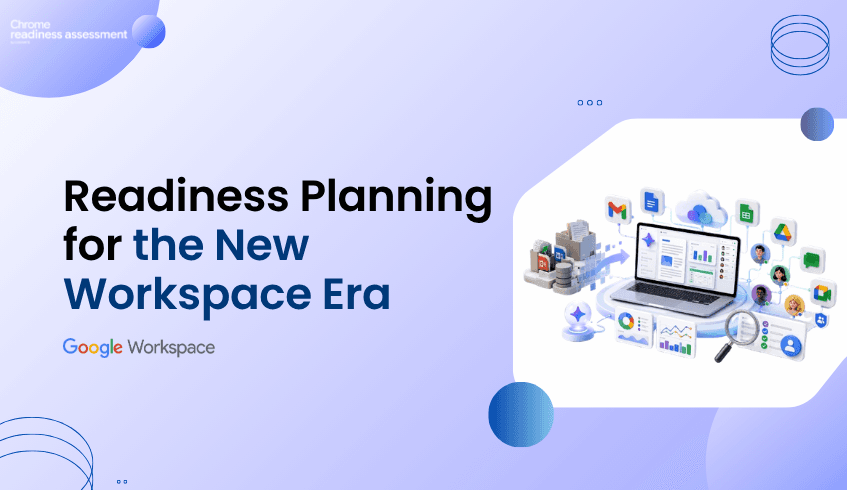
Google Workspace is moving modern work toward a more AI-powered and connected experience, helping teams create, analyze, communicate, and collaborate with less friction.
The updates around Workspace Intelligence, Gemini in Docs, Gemini in Sheets, Sheets performance, Sheets Canvas, and guest collaboration in Google Chat all point to the same shift. Work is moving away from disconnected files and manual processes toward a more intelligent cloud workspace where teams can get more done inside the tools they already use.
For organizations planning a move to Google Workspace, these updates are important. They show what teams can gain from a modern productivity environment. But before migration begins, organizations also need to understand what their teams currently use and which legacy workflows may need review.
That is where Workspace Readiness in Chrome Readiness Assessment helps.
Workspace Intelligence shows how Google Workspace is becoming more context-aware across daily tools. Instead of treating every document, message, spreadsheet, and email as separate pieces of work, Workspace is moving toward a more connected experience where information can be understood across apps.
This matters because modern teams often lose time searching for context. A project may have details in Docs, updates in Chat, decisions in Gmail, files in Drive, and numbers in Sheets. When that context is disconnected, employees spend more time collecting information before they can actually act on it.
A more intelligent Workspace experience helps reduce that friction. It brings everyday work closer to the information teams already have, making it easier to write, summarize, organize, and make decisions without constantly switching between separate tools.
Document creation is still one of the most common parts of business work. Teams create proposals, reports, policies, project plans, meeting notes, guides, and internal updates every day. The latest Gemini capabilities in Docs make this work more practical by helping users match writing style and document formatting.
This is especially useful when documents involve multiple contributors. A report may include content from different people, different teams, or older reference files. Without support, the final document can feel inconsistent in tone, format, and structure.
Gemini in Docs helps make writing and formatting easier to manage. Teams can move faster from draft to polished document while keeping content closer to the style and structure they need. For organizations that care about consistency, this can reduce manual editing effort and help teams produce stronger documents with less friction.
Spreadsheets continue to play a major role in business operations. Finance teams use them for budgets and forecasts. Operations teams use them for tracking. Sales teams use them for pipeline updates. HR teams use them for planning and reporting.
That is why the latest Sheets updates matter. Faster performance for large spreadsheets helps reduce delays when teams work with bigger files, more rows, complex filters, and heavier formatting. When spreadsheets respond faster, users spend less time waiting and more time analyzing.
Gemini in Sheets also expands what users can do with natural language. Teams can create spreadsheet structures, work with data, fill information, and support analysis without starting every task manually. This makes Sheets more useful for employees who need insights but may not have advanced spreadsheet expertise.
Modern work often includes external users. Teams may collaborate with vendors, clients, contractors, partners, agencies, or temporary project contributors. If external collaboration is difficult, employees may fall back to email attachments, separate file copies, or disconnected communication.
Guest collaboration in Google Chat helps make external work more structured. Teams can bring external contacts into collaboration spaces while keeping the experience closer to the organization’s Workspace environment.
This is useful because external collaboration should not feel disconnected from everyday work. When Chat, Drive, Docs, Sheets, Slides, and Meet work together, internal and external collaboration can happen with less friction and better continuity.
The latest Workspace updates are not just small product improvements. They show a bigger shift in how work is changing.
Workspace is becoming more AI-assisted, more connected, and more workflow-aware. Docs is becoming stronger for writing and formatting. Sheets are becoming faster and more intelligent. Chat is becoming more practical for collaboration beyond internal teams. Gemini is becoming part of everyday productivity rather than a separate tool outside the work process.
For organizations, this creates a strong reason to revisit how teams work today. If employees are still relying heavily on older desktop productivity tools, local files, manual spreadsheet processes, or disconnected collaboration habits, these updates show what a more modern work environment can look like.
The value of Google Workspace becomes clearer when teams understand the current environment first. Before starting a Google Workspace migration, organizations need to know which productivity tools are actually used, how much time users spend in each application, and which workflows may already have Workspace alternatives.
This matters because migration is not only about moving files. It is about understanding how people work. Some teams may already be ready for cloud-first collaboration. Others may still depend on legacy productivity tools, complex spreadsheets, or workflows that need more planning.
Without this visibility, migration planning can become assumption-based. Teams may overestimate the importance of rarely used tools or underestimate workflows that still depend on older applications. A clear readiness view helps avoid that problem.
Workspace Readiness in Chrome Readiness Assessment helps organizations understand what teams really use before they migrate. It supports Google Workspace planning by helping IT teams identify office productivity tools, review usage time for each application, detect macro usage, and spot Google Workspace alternatives.
This gives organizations a practical way to connect the latest Workspace updates with migration planning. If teams want to benefit from Gemini in Docs, faster Sheets, cloud collaboration, and smarter Workspace workflows, they first need to understand what productivity tools are still active in the current environment.
Workspace Readiness helps reveal that picture. It shows where teams may be ready to move, where hidden blockers may exist, and where legacy tools may need review before migration.
New Workspace capabilities can make the move more attractive, but readiness still matters. A team may want to use Gemini in Sheets, but existing spreadsheet workflows may need review. A department may be ready for cloud collaboration, while another may still depend on older productivity applications. Some workflows may have Workspace alternatives, while others may need a closer look before migration.
Workspace Readiness helps teams prepare for those differences. It gives IT teams a clearer understanding of the current productivity environment so migration can be planned around real usage instead of assumptions.
For teams that need a deeper look at macro-related usage, this guide on macro usage before moving Office workflows to Google Workspace can support that review without making macro usage the main focus of this blog.
The latest Google Workspace updates show where cloud productivity is heading. AI-assisted writing, smarter spreadsheets, faster data work, interactive spreadsheet experiences, and easier external collaboration all support a more modern way of working.
Workspace Readiness helps organizations take the next step with more confidence. Before moving users to Google Workspace, IT teams can understand what productivity tools are used today, how much those tools are used, where Workspace alternatives may fit, and which areas need review before migration begins.
That makes the move more practical. Instead of only reacting to new Workspace features, organizations can build a clearer path from their current productivity environment to a more cloud-native way of working.
What are the latest Google Workspace updates focused on?
The latest updates focus on AI-powered productivity, smarter documents, faster spreadsheet work, Gemini-assisted Sheets workflows, interactive spreadsheet experiences, and more connected collaboration.
How does Gemini support Google Workspace users?
Gemini supports users across Workspace by helping with writing, formatting, organizing, analyzing, and creating content inside familiar tools such as Docs and Sheets.
Why do Sheets updates matter for organizations?
Sheets updates matter because many teams rely on spreadsheets for reporting, tracking, planning, and analysis. Faster performance and Gemini-assisted spreadsheet work can reduce manual effort and improve productivity.
What is Sheets Canvas useful for?
Sheets Canvas can help teams turn spreadsheet information into more interactive views, such as dashboards, trackers, reports, and lightweight workflow experiences.
Where does Workspace Readiness fit into this topic?
Workspace Readiness helps organizations understand their current productivity environment before moving to Google Workspace. It shows productivity tools used, usage time, macro usage, Workspace alternatives, and possible migration blockers.
Why should organizations review readiness before using Google Workspace more broadly?
Readiness review helps teams understand what users rely on today, which workflows may be ready to move, and which areas may need review before migration.
The latest Google Workspace updates show a more intelligent and connected direction for modern work. Workspace Readiness helps organizations prepare for that direction by showing what teams use today, where Workspace alternatives may fit, and how Google Workspace migration can begin with more clarity.
Many organizations are interested in using Gemini Enterprise to automate business workflows, reduce repetitive work, and help teams move faster across everyday processes.
The opportunity is clear. Teams want AI agents that can support document creation, internal knowledge search, customer support, reporting, operations, approvals, and cross-department workflows.
But automation should not begin by choosing random tasks.
It should begin by understanding which workflows actually repeat, where time is being spent, and which processes may be suitable for review.
Chrome Readiness Assessment helps organizations approach Gemini Enterprise automation planning with more clarity. Instead of treating automation as a broad idea, CRA helps teams identify workflow patterns that may deserve attention before automation decisions are made.
Enterprise teams are no longer looking at automation as a small productivity experiment. They want practical ways to reduce manual work, connect business processes, and use AI agents to support real operations.
This can include workflows across HR, finance, sales, customer service, IT, reporting, and operations etc. Some teams may want to automate repetitive document tasks. Others may want to improve support workflows, summarize information, process requests, or reduce manual handoffs between systems.
The challenge is that not every workflow should be automated first.
Some workflows happen rarely. Some are too inconsistent. Some need human judgment. Some may involve sensitive information or process steps that require review. This is why organizations need workflow readiness before moving too quickly into automation planning.
A business team may know that repetitive work exists, but it may not know which workflows create the biggest opportunity.
Employees may switch between applications every day, but those patterns are not always visible at the leadership level. A workflow may feel simple to one user, but across many devices or teams, it may represent a larger amount of repeated effort.
Without readiness visibility, automation planning can become assumption-based.
Teams may choose workflows because they are easy to talk about, not because they are the best candidates. They may focus on tasks that look repetitive but do not create enough business value. They may also overlook workflows that repeat often across multiple users and applications.
CRA helps close that gap by giving teams a clearer way to review workflow patterns before deciding where Gemini Enterprise automation may create value.
Repetitive work often hides inside normal daily activity.
A user may open email, move into a spreadsheet, check a web application, update a document, and repeat the same sequence many times. Another team may follow a similar pattern across reporting, approvals, customer updates, or operational tracking.
These repeated patterns are useful because they can become workflow signals.
They help organizations understand where manual effort is happening, which applications are involved, and whether a workflow may be worth reviewing for future automation.
CRA helps turn those signals into a planning view. This gives IT, operations, and business teams a better starting point for deciding which workflows should be reviewed first.
Automation works best when it is focused on the right problems.
A good automation candidate is usually a workflow that repeats often, follows a recognizable sequence, consumes meaningful time, and supports a business process that can benefit from faster execution or reduced manual effort.
Not every repeated workflow will be ready for automation. Some may still need process cleanup. Some may need stronger governance. Some may require more context before they can be supported by AI agents.
This is why readiness planning matters.
CRA helps teams look at workflow activity before making automation decisions. The goal is not to automate everything. The goal is to identify which workflows are worth reviewing.
Making Gemini Enterprise Automation More Practical
Gemini Enterprise Agent Platform supports enterprise-grade agents that can help organizations build, govern, and optimize agentic systems.
For business teams, this creates new possibilities. AI agents can support work across documents, data, approvals, communications, and operational processes.
But the strongest automation plans usually begin with workflow understanding.
Before teams design an AI agent, they need to understand the process it will support. They need to know which applications are involved, how often the workflow appears, whether it repeats across users, and whether the process is stable enough to review for automation.
CRA helps create that foundation by showing where repetitive workflow patterns may exist.
Gemini Enterprise automation planning should not sit only with IT or only with business teams.
Business teams understand the pain points. IT teams understand systems, access, applications, and rollout realities. When both teams work from the same workflow visibility, the automation conversation becomes more practical.
Instead of saying, “We should automate more,” teams can discuss specific workflows that appear repeatedly.
They can review whether those workflows involve the right applications, whether the process is stable, whether the business value is clear, and whether the workflow should move into a deeper automation review.
CRA helps make that conversation easier because it gives teams a clearer starting point.
Automation can become expensive or confusing when teams start with assumptions.
If the wrong workflow is selected, the organization may spend time building an automation that does not save enough effort or does not fit the way users actually work. If a workflow is chosen too early, teams may discover later that the process is inconsistent, too manual, or dependent on exceptions that were not considered.
Workflow readiness helps reduce that risk.
CRA supports a more careful planning process by helping teams identify repeated application sequences, time spent, and confidence level before automation planning moves too far. This gives organizations a better chance of choosing workflows that can support meaningful Gemini Enterprise automation outcomes.
This blog focuses on the planning mindset behind Gemini Enterprise automation.
For a deeper look at the CRA feature that supports this readiness view, read See Which Workflows Are Ready for Gemini Enterprise Automation. That blog explains how Agentic Workflows helps identify repeated application sequences, time spent, device usage, and automation readiness.
Why should workflow readiness come before Gemini Enterprise automation?
Workflow readiness helps teams understand which processes repeat, where manual effort exists, and which workflows may be worth reviewing before automation decisions are made.
How does CRA support Gemini Enterprise automation planning?
Chrome Readiness Assessment helps teams identify repeated workflow patterns, application sequences, time spent, and automation readiness signals that can support Gemini Enterprise planning.
Does CRA automate workflows directly?
No. CRA helps teams understand workflow readiness. It supports planning by showing which workflows may be suitable for review before automation is designed or implemented.
What makes a workflow a good automation candidate?
A strong candidate usually repeats often, follows a recognizable sequence, involves meaningful time, and supports a business process where automation could reduce manual effort.
Who should use workflow readiness insights?
IT teams, operations teams, business leaders, and automation planning teams can use workflow readiness insights to decide which processes should be reviewed for Gemini Enterprise automation.
How is this blog different from the previous Agentic Workflows blog?
The previous blog introduced the Agentic Workflows feature in CRA. This blog focuses on the broader planning problem: how organizations can move from automation ideas to a practical readiness-based automation roadmap.
Chrome Readiness Assessment helps organizations move from automation interest to workflow readiness. By helping teams identify repeated workflows and understand where automation review may make sense, CRA gives organizations a stronger foundation for Gemini Enterprise automation planning.
Most organizations have a preferred browser strategy, but real browser usage can look very different across the business.
Users may work across different browser environments depending on their role, workflow, habits, or application needs. Some browsers may represent a large share of browser activity across the organization, while others may appear in smaller usage percentages.
This browser mix matters because the browser is where employees access cloud applications, business platforms, internal systems, customer tools, and sensitive data.
CEP Accelerator helps IT and security teams understand this browser landscape more clearly. Through Browser Insights, teams can see which browsers are used across the organization and how usage is distributed, giving them a stronger starting point for secure browsing readiness.
A company may expect users to work mainly from one browser, but daily usage often tells a different story. Some users may use Chrome as their main browser, while others may use Edge for internal systems, Firefox for specific workflows, Opera or Vivaldi for productivity habits, or Brave for privacy-focused browsing.
These choices may come from user preference, department workflows, application compatibility, testing habits, or older working patterns that have continued over time. Without visibility, IT teams may not know whether the browser environment is simple, fragmented, or spread across multiple browser types.
This creates a gap between browser policy and browser reality. CEP Accelerator helps close that gap by showing which browsers are used across the organization and how browser usage is distributed.
Without browser usage visibility, planning can become assumption-based.
IT teams may believe most users are working from one browser, while the dashboard may show a wider browser mix across the organization. Security teams may plan around a primary browser, while some users continue to access business platforms through other browsers.
CEP Accelerator helps teams move from guessing to seeing. Instead of relying on assumptions, teams can understand how browser usage is actually distributed across the organization. That shift matters because secure browsing decisions become grounded in real usage, not only policy expectations.
Browser usage visibility is valuable because it helps teams decide where attention should go first.
CEP Accelerator does not enforce policies by itself and it does not replace Chrome Enterprise Premium. Its role is to help IT and security teams understand which browser-related areas should be reviewed and prioritized as part of secure browsing readiness.
A browser with a higher usage percentage may need earlier review because it represents a larger share of browser activity across the organization. A browser with a lower percentage should not be ignored either, because it may still support specific users, workflows, or business needs.
With Browser Insights, teams can move from:
“We have different browsers across the organization.”
To:
“These browsers and usage patterns should be reviewed first because they represent the largest share of browser activity across the organization.”
That makes browser planning more practical and easier to communicate.
Browser usage is not only a technical detail. It can also show how people work.
A browser may be popular in one area of the business because a specific workflow runs better there. Another browser may appear in a smaller usage percentage because of a legacy platform, testing process, reporting tool, or user habit.
If these patterns are not understood, changes to browser strategy may affect users unexpectedly. The browser usage view helps teams identify where browser behavior may be connected to real business workflows, giving IT teams a better chance to review user impact before making broader secure browsing decisions.
Browser usage is often the best starting point for browser review.
Teams can begin by looking at which browsers are used most often, which browsers appear in smaller percentages, and whether usage patterns suggest areas that need deeper investigation. From there, teams can review browser versions, extension visibility, security posture, and other Browser Insights data as needed.
This staged approach makes browser planning easier. Instead of trying to solve every browser concern at once, teams can begin with browser distribution and decide where deeper review is needed.
For a wider look at the feature, teams can read the Browser Insights feature blog. For the security angle around multiple browsers, the browser sprawl blog explains how browser variety across enterprise devices can create hidden visibility and security gaps.
Teams can also watch the Browser Insights video walkthrough to see how browser visibility supports readiness planning in practice.
IT teams need a clear view of browser usage before planning browser-related changes.
CEP Accelerator helps them understand which browsers are used across the organization, how usage is distributed, and where browser review may need to begin. This can support better planning for support, communication, browser standardization, and secure browsing readiness.
It also helps teams avoid broad assumptions. A browser with a smaller share may still matter. A browser with a larger share may require earlier planning. A mixed browser environment may need a more careful review path.
With Browser Insights, IT teams can make those decisions with clearer context.
Security teams need to understand where browser activity happens before reviewing risk.
If users work across multiple browsers, security planning should reflect that reality. Browser usage data gives security teams a starting point for reviewing where stronger controls, extension review, risk analysis, or secure browsing planning may be needed.
This does not mean every browser issue has the same priority. CEP Accelerator helps teams see where usage is highest, where smaller browser pockets exist, and where deeper security review may be useful.
This gives security teams a clearer way to connect browser insight findings with secure browsing readiness.
What does the Browsers Used Across the Organization view show?
It shows which browsers are used across the organization and helps teams understand browser usage distribution through usage percentages.
Which browsers are included in Browser Insights?
Browser Insights supports visibility for Chrome, Microsoft Edge, Mozilla Firefox, Opera, Vivaldi, and Brave.
How is this blog different from the browser sprawl blog?
The browser sprawl blog focuses on the security gap created by multiple browsers. This blog focuses on browser usage distribution and how CEP Accelerator helps teams use that visibility for secure browsing readiness planning.
How does browser usage visibility help IT teams?
It helps IT teams understand which browsers are actually used across the organization, where usage is concentrated, and where browser review may need to begin.
Should low-usage browsers be ignored?
No. A browser with lower usage may still support specific users, workflows, or business needs. Browser Insights helps teams see both high-usage and lower-usage browser patterns before making decisions.
Does CEP Accelerator enforce browser policies?
No. CEP Accelerator provides visibility and planning insight. It helps teams understand browser usage and decide where attention may be needed before policy, security, or adoption decisions are made.
CEP Accelerator helps organizations move from browser assumptions to browser visibility. By showing which browsers are used across the organization and how usage is distributed, Browser Insights gives IT and security teams a clearer starting point for secure browsing readiness.